
Data Studio Session Activity and Automatic Logout
Data Studio is an interactive analysis environment on the Seven Bridges Platform that lets you work directly with your data using tools such as 3D slicer, OHIF Viewer, JupyterLab and RStudio etc. This explains how session activity, inactivity warnings, automatic logout works in Data Studio.
What counts as activity in Data Studio
- The platform recognizes common Data Studio interactions as user activity.
- Typing or editing in a notebook, editor or IDE
- Using the Data Studio interface
- Clicks and navigation within the Data Studio analysis environment
- Mouse movement and similar presence-based interaction while working in Data Studio
What happens if you become inactive
- Automatic logout still happens when there is no user activity for the required amount of time.
- Commercial platforms use a 60-minute inactivity timeout.
- This behavior is intended to maintain platform security requirements.
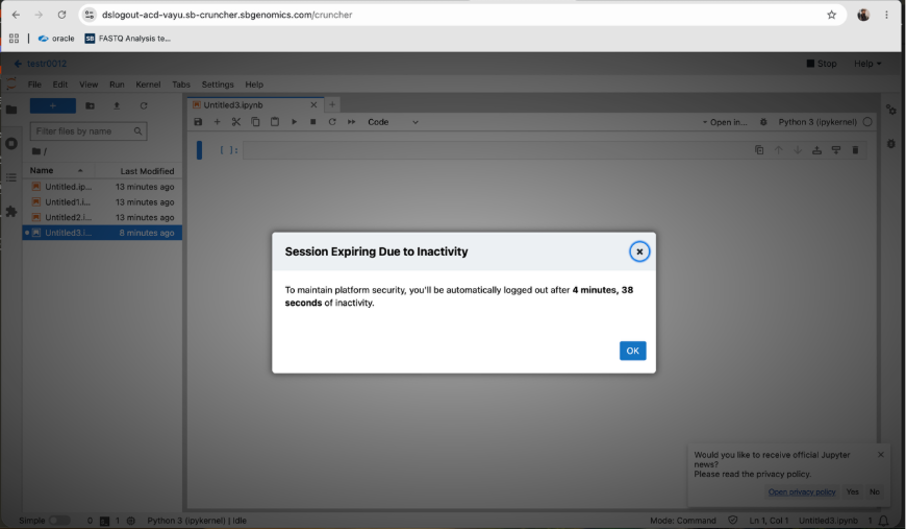
Before logout, the platform shows a warning pop-up.
- On Commercial platforms, the warning appears 5 minutes before logout.
- The warning includes a live countdown until automatic logout.
Session Inactivity pop-up
Session expiring warning
• You will see a warning message from 55th minute of inactivity
• Click on ‘Ok’ button to remain on same screen
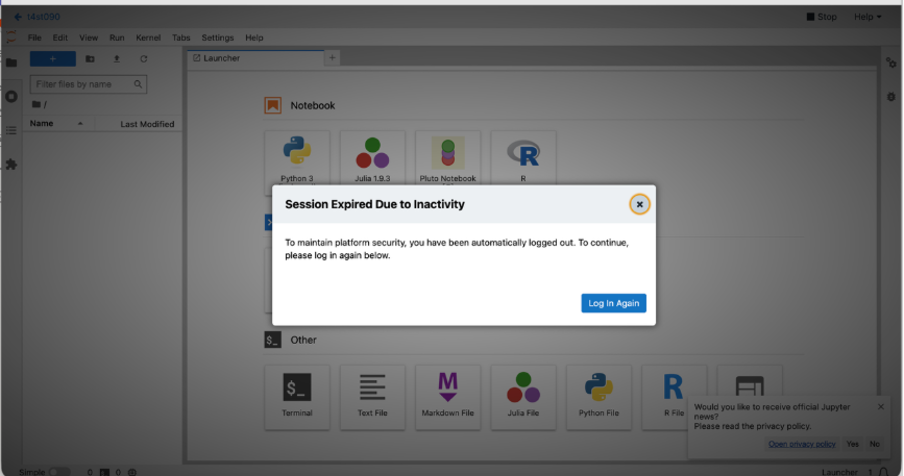
Session expired message
• You will see a logout message on 60th minute of inactivity
• Click on ‘Log In Again’ button to log-in onto the platform which re-directs to login screen.
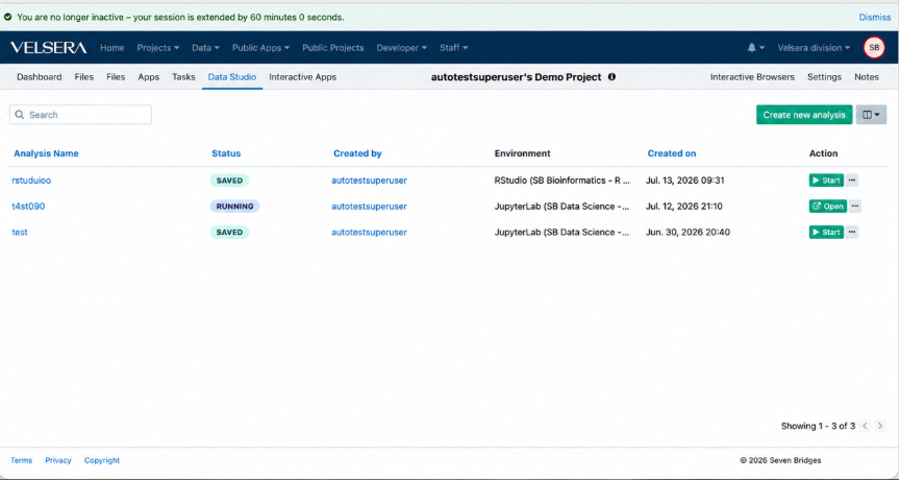
Platform Session extended banner
-
If you are inactive on the platform for more than 55 minutes and return before the 60-minute session timeout, the platform may display a brief confirmation banner.
-
The banner fades after 10 seconds.
Updated 3 months ago